AI Images
AI Background Removal and Transparent Images
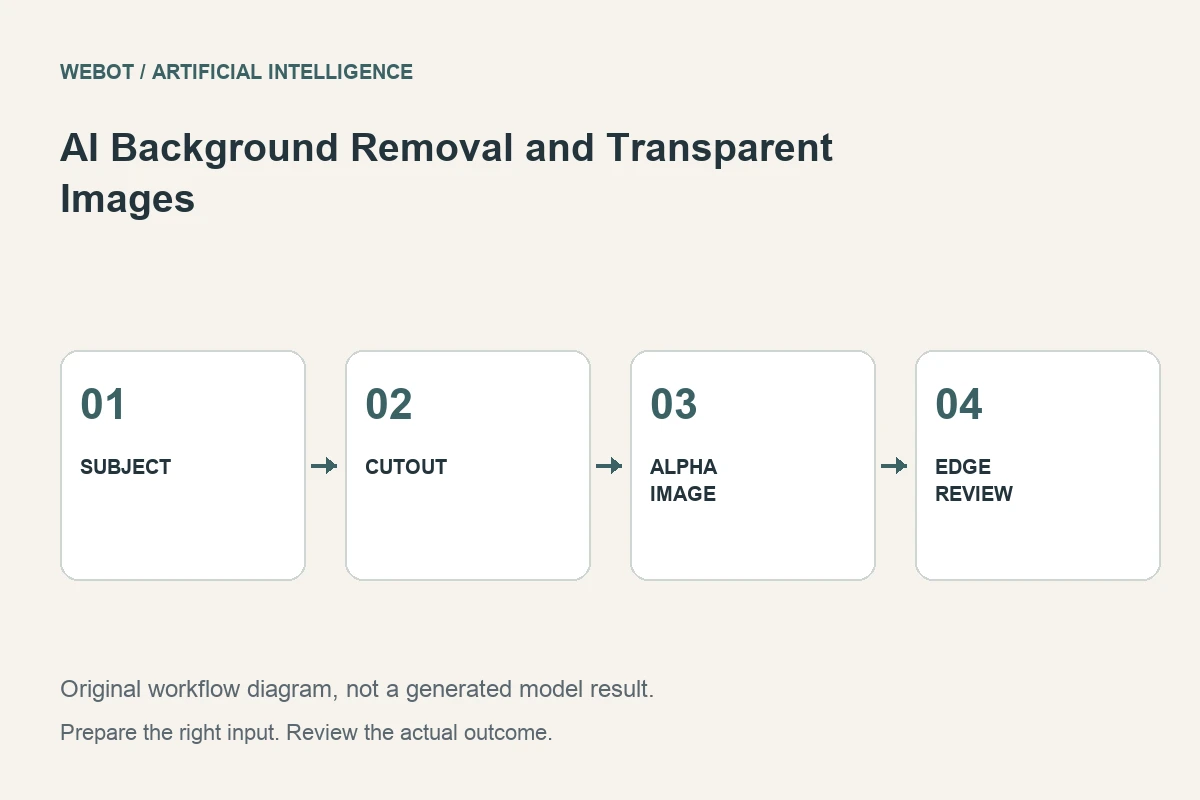
AI background removal separates a subject from its surrounding scene so the subject can be used on a transparent canvas or another background. The useful result is not merely a file that appears to have no backdrop. It needs a convincing edge, appropriate handling of fine detail, and a format that preserves the transparency required by the destination.
Consider a fictional craft shop preparing a ceramic vase for a catalogue card. The photograph contains a distracting room background, but the vase’s outline and handles need to remain accurate. This guide explains source selection, transparency checks, edge review, and the finishing decisions that turn an automatic cutout into a dependable production asset.
1. Identify the subject and the difficult boundaries
Review which parts belong to the vase and which parts belong to the background. Handles create internal openings; reflections may contain colors from the room; a cast shadow may be useful or unwanted depending on the layout. These details require different decisions rather than one general instruction to remove everything behind the object.
Write the intended result before processing. A floating catalogue cutout may need the original background and shadow removed, while a composite into another room may need a newly designed contact shadow later. The operation should follow that purpose. Automatic separation can provide a starting mask, but the production brief determines which edge and shadow behavior counts as correct.
2. Start with a source that makes separation understandable
A clear outline, adequate resolution, and a distinguishable background make the task easier to review. Severe blur, motion, cropped handles, and nearly identical foreground and background colors can create ambiguous boundaries. If you have another accurate photograph with a clearer separation, test that source before trying to repair an unnecessarily difficult cutout.
Keep the original image and any prepared crop separately. Cropping too tightly can remove a useful shadow or cut into the subject’s edge. Check that every part needed for the final layout is present. A background removal model cannot recover a verified portion of the vase that the photograph never captured; any later reconstruction would be a different editing task.
3. Check the workflow and output format
Read the selected endpoint’s current input requirements and result description. Some workflows return a cutout image, others provide masks or related outputs. Confirm what the actual WeBot workspace supports and which file contains the transparency you need. A provider’s general capability does not define every integration’s output contract.
Choose a delivery format that preserves the required alpha information. A white-looking background is not proof of transparency, and saving to an unsuitable format can flatten an otherwise correct cutout. Inspect the actual exported file rather than trusting a preview checkerboard. The file’s practical behavior in the destination editor or page is the relevant evidence.
4. Inspect the outline at a useful scale
Look around the entire subject for missing fragments, retained background pieces, rough contours, and accidental holes. In the vase example, check the handle openings and the rim carefully. A quick glance at the largest outer edge can miss exactly the details that make the product recognizable.
Evaluate the edge at both close inspection and intended display size. A tiny irregularity may be irrelevant in a small card, while a bright halo can remain visible everywhere. The review should match the final use without excusing an inaccurate product outline. Keep notes naming the affected area so any cleanup targets the actual defect instead of applying a broad blur that softens the entire subject.
5. Test the cutout against different backgrounds
Place the subject over a light background, a dark background, and the actual destination color. This reveals halos, dark fringes, and color contamination that may be hidden on the processing preview. A cutout that looks clean on white can have a visible pale border on a darker page.
Inspect reflective or translucent regions separately. Their appearance may depend partly on the original environment, and a hard binary edge can misrepresent materials that naturally transmit light. Decide whether the source and workflow suit the intended composite. A background removal result is not automatically a physically accurate relighting or transparency simulation for every kind of glass, fabric, or reflective surface.
6. Handle shadows as a composition decision
Removing the original backdrop may also change how the object feels grounded. A catalogue design might intentionally use a clean floating subject, while a room composite needs believable contact with its surface. Treat the shadow as a separate reviewed element rather than assuming that every existing shadow should either remain or disappear.
If you add a new shadow, align its direction, softness, scale, and contact with the new setting. Check the object’s apparent height and perspective as well. A polished edge cannot repair a vase that seems to hover above the table. Use conventional editing where it offers precise control, and keep the cutout separate from the final composite so later layout changes remain manageable.
7. Choose targeted cleanup over indiscriminate regeneration
If a small background fragment remains in a handle, refine that area rather than automatically rerunning the entire project. If the separation consistently loses a fine feature, consider another source or a more suitable masking method. Repeated processing without a specific hypothesis can produce different defects without resolving the important one.
For the craft shop, this record also helps verify that a handle opening was cleaned rather than accidentally reshaped. Save the original, generated mask or cutout, and final cleaned version with clear names. Record any manual adjustments that affect the subject outline. This is particularly useful when the image represents a product whose shape matters. A later reviewer should be able to distinguish an accurate cleanup from an aesthetic alteration that changes what the product appears to be.
8. Verify delivery in the real layout
Open the exported asset in the destination application or page. Check transparency, dimensions, edge appearance, and compression after resizing. Provide suitable alt text when the image conveys meaningful product information, and avoid turning accessibility descriptions into a list of unrelated search phrases.
Before a WeBot generation, review the current estimate and preserve accepted pending requests during connection interruptions. Background removal is most useful as a production step with a clear purpose: separate the correct subject, inspect all boundaries, test the alpha against real backgrounds, and finish the composition deliberately. The outcome is a reusable visual asset, not just an automatically processed file with an apparently empty backdrop.
Sources and further reading
Put the guide into practice
Browse available workflows, review their supported inputs and choose a workspace for your next project.
Explore AI models