AI Images
AI Outpainting: Extend an Image Canvas
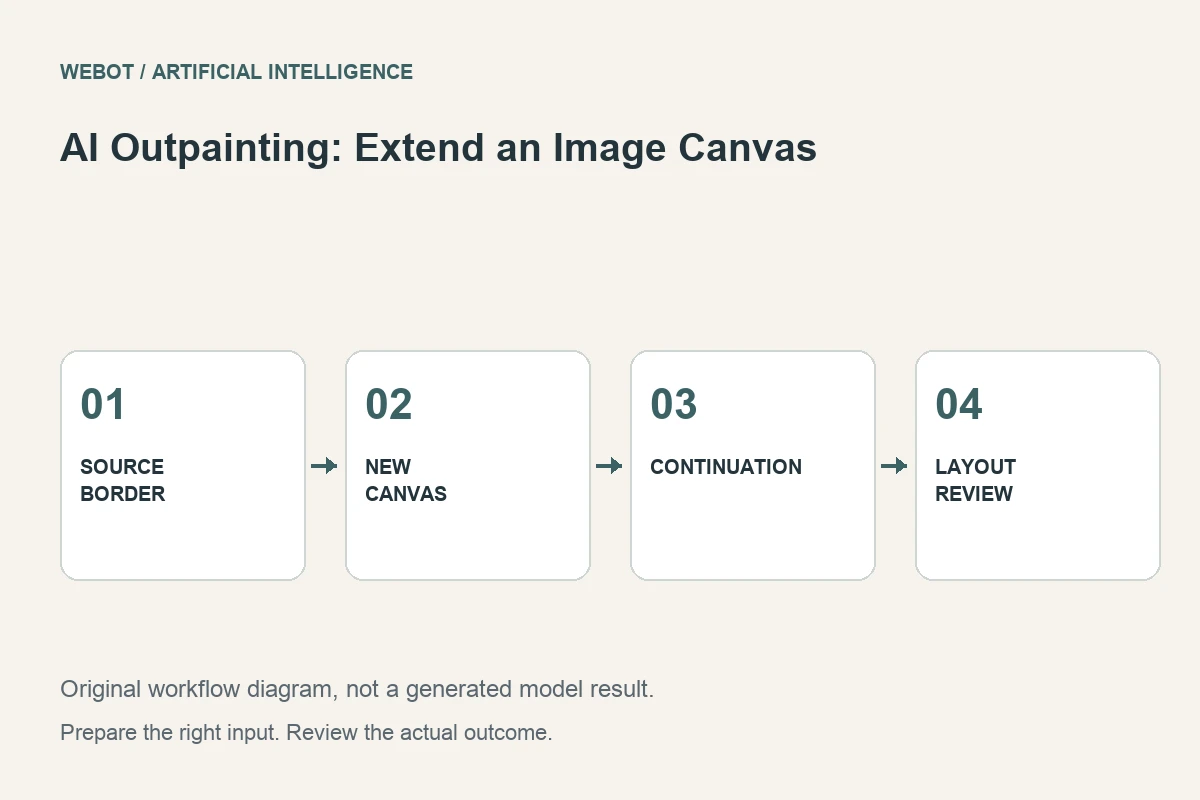
AI outpainting creates visual content beyond an image’s existing boundaries. It can help adapt a narrow photograph to a wider layout or give an illustration more room around its subject. The new area is synthesized, so the task is not equivalent to recovering pixels that were secretly stored outside the original file.
Imagine a fictional exhibition team adapting a square landscape illustration into a wide event banner. The central scene should remain recognizable, with additional space for an accurate headline. This guide explains how to plan the expansion, supply useful context, review the generated edges, and decide when a simple layout change is the better solution.
1. Decide why the canvas needs to grow
Start with the destination rather than an arbitrary larger size. A wide banner may need space beside the main subject; a vertical story may need room above it. Identify where the important content and typography will sit. This determines which boundaries need expansion and how much new visual information the project actually requires.
For the exhibition banner, the main illustration can remain in its original area while the new side region provides a quiet background for text. The brief should specify that purpose. Filling every added area with new objects can undermine the layout even when the generated content looks detailed. The best expansion supports the existing visual hierarchy rather than competing with it.
2. Understand what outpainting can and cannot establish
The original image constrains appearance near its borders, but it does not prove what existed beyond them. A generated continuation of a landscape is a plausible invention, not a verified wider photograph. Keep that distinction clear when the image represents an actual place, event, or product.
If factual accuracy outside the frame matters, obtain an appropriate original source instead. Outpainting is useful for concept images, illustrative environments, and layouts where synthesis is acceptable. It should not silently convert an incomplete record into apparent evidence. State the intended use in the production brief so everyone reviewing or reusing the asset understands why the added material was considered appropriate.
3. Prepare the source and expansion geometry
Inspect the original borders for strong lines, texture, shadows, and partly visible objects. These features influence how a continuation should connect. A horizon crossing the edge needs coherent perspective; a cut-off branch may need a plausible extension; a patterned wall needs consistent scale and direction.
Check the selected workflow’s required canvas, mask, padding, or image inputs. Different endpoints may express expansion differently. Do not assume that adding transparent space in an editor automatically tells every model which area to preserve. Save the original, prepared canvas, and any mask separately. This lets you identify whether a later seam came from preparation or from the generated continuation.
4. Describe the added scene in relation to the original
A useful direction might request a natural continuation of the illustrated landscape, matching the existing light and color treatment, with an uncluttered area on the right for event text. This describes both visual continuity and the layout purpose. It avoids turning the expansion into an unrelated scene.
Be specific about important lines or structures when needed, but avoid contradictory new features. A different time of day or a new viewpoint can make the join difficult to maintain. If the goal is a deliberately surreal transformation, define that as the creative brief and review it accordingly. Outpainting can support different styles, but the intended relationship between old and new content should remain understandable.
5. Verify current controls and practical limits
Read the endpoint’s current accepted formats, output sizing, mask conventions, and supported options. A general image editing model may not expose the same outpainting controls as a specialized workflow. Provider descriptions help research possibilities, while the active WeBot workspace establishes what is available for the request you are preparing.
Avoid copying universal expansion ratios or settings from an unrelated tutorial. Test a modest, useful extension first and inspect the result before committing to a larger layout. If several edges need substantial reconstruction, consider whether a new composition would be more suitable than repeatedly extending an image whose subject was framed for a very different purpose.
6. Review seams, perspective, and attention
Inspect the boundary where original and generated content meet. Look for shifts in sharpness, repeated texture, broken lines, color changes, and inconsistent shadows. Then review the whole image: the added region may be technically coherent but draw attention away from the main subject or make the composition feel unbalanced.
For the exhibition team, a clean extension is useful only if the event name and date remain readable without covering the original focal subject. Place the intended headline in the layout before approving the expansion. An attractive added tree can become a problem if it competes with the event title. Check both full size and expected display size. The acceptance standard should include continuity and usefulness, not only whether the model filled the empty canvas. Keep concrete notes describing the seam or compositional problem that needs revision.
7. Compare alternatives before another generation
If the expansion repeatedly introduces clutter, simplify the direction or adjust the layout’s text area. If a geometric structure breaks at the border, use a more precise editing method for that element. A background color, a graphic panel, a different crop, or a redesigned banner can sometimes solve the layout problem more reliably.
Version prepared canvases and prompts together. Moving the original within the larger canvas changes the composition, even when the source file itself remains the same. Save the chosen candidate and the reason it worked. This makes later resizing decisions easier and prevents a team from treating every new banner format as an unexplained repetition of the entire creative process.
8. Export the composition and preserve provenance
Check the final image’s dimensions, file format, compression, and readability in the actual destination. Review accurate typography in the finished layout rather than asking the generated background to carry essential event information. Keep an original source copy and mark the expanded area in your production notes so future collaborators understand which parts were synthesized.
On WeBot, inspect the current estimate before generation and keep accepted pending jobs recoverable through temporary connection problems. Outpainting is successful when the added content fits the original scene and solves a real composition need. A larger canvas is only the technical result; a clearer, usable visual is the production outcome that matters.
Sources and further reading
Put the guide into practice
Browse available workflows, review their supported inputs and choose a workspace for your next project.
Explore AI models