AI Images
AI Image Inpainting: Edit a Selected Region
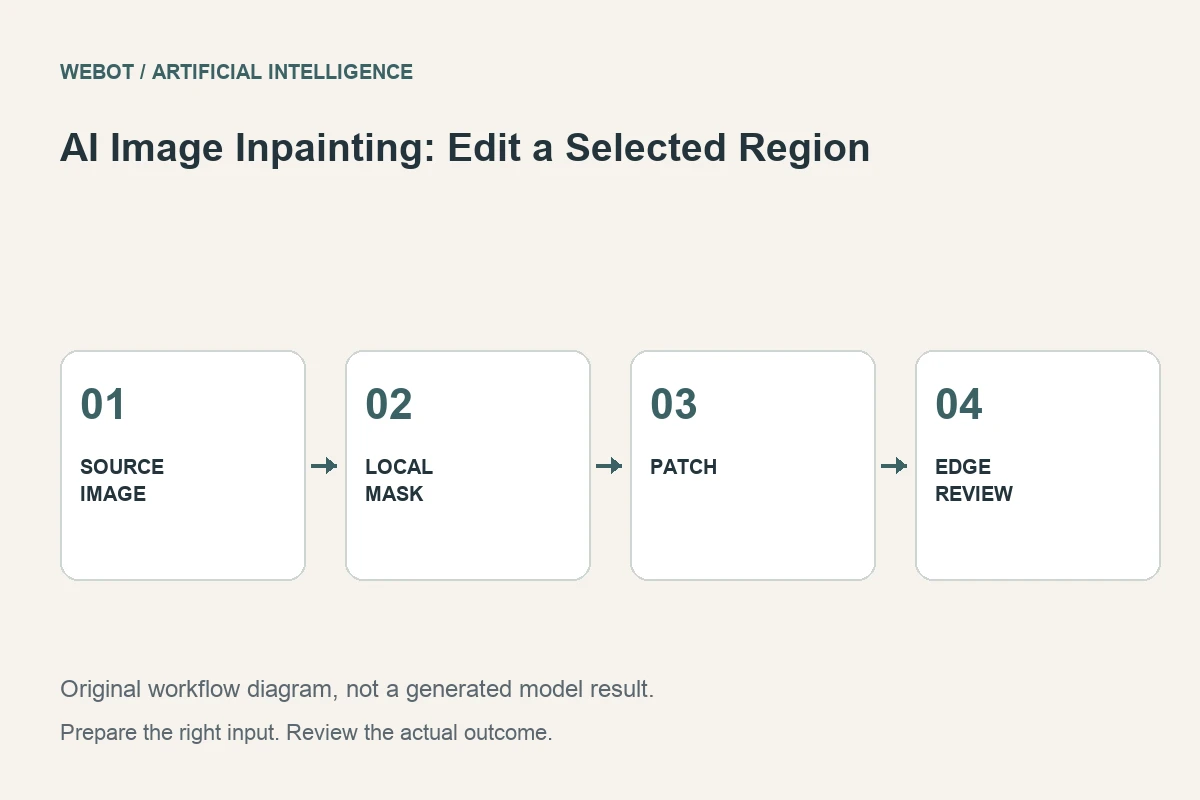
AI image inpainting changes a selected area of an image while using surrounding visual information as context. It can help remove a distracting object, replace a local element, or repair a small defect in a supported workflow. The main challenge is defining an edit boundary that gives the model enough room to create a coherent result without changing important neighboring content.
Consider a fictional product photograph with an unwanted cable crossing the table behind the subject. The goal is to remove the cable and reconstruct the background naturally. This guide explains mask preparation, prompt design, edge review, and the decisions that determine whether a local AI edit is more useful than regenerating the whole picture.
1. Define the local change precisely
Identify the unwanted element and the context that should replace it. Removing a cable from a wooden tabletop is different from replacing a chair or rebuilding part of a face. The size of the selected area, the surrounding structure, and the meaning of the edit all influence the review requirements.
Write down what must remain untouched, including the product outline, label, and important shadows. Inpainting is a local editing concept, but exact preservation outside the selection depends on the selected workflow and its actual behavior. Check the output rather than assuming that an interface mask guarantees pixel-for-pixel stability everywhere else. For the tabletop, the cable shadow and any reflected highlight also belong in that comparison, even when the cable itself is gone. A local edit should be judged in the context of the whole image.
2. Prepare the mask and source carefully
Inspect the input at a useful scale and make the cable clearly visible. Create the mask according to the endpoint’s documented convention. Some systems interpret mask colors or transparency differently, so confirm which region indicates an edit. An inverted or misaligned mask can request the opposite of what you intended.
Include enough of the cable and its associated visual traces to make the reconstruction coherent. A thin selection that leaves a shadow or reflection behind may produce an incomplete removal. At the same time, avoid selecting important product edges unnecessarily. Keep the original image and mask as separate named assets so a reviewer can reproduce the intended edit boundary without guessing from the finished result.
3. Describe the desired replacement context
A useful direction might request a clean continuation of the wooden tabletop, matching its grain, lighting, and perspective. This describes what should occupy the selected region. Asking only to erase the cable may leave more interpretation to the model about the appearance of the reconstructed area.
Avoid introducing unrelated objects into the same small edit. If you want to replace the cable with a decorative item, treat that as a different brief and evaluate the new object’s scale, contact, and shadow. A precise prompt focuses the local decision while leaving the surrounding source to communicate the scene. Longer instructions are useful only when they clarify an observable requirement.
4. Check the actual inpainting workflow
Verify the current accepted image and mask formats, size relationships, required fields, and optional settings. A model’s image generation capability does not imply that it supports an explicit mask in every variant. A general reference image or editing instruction may have a different contract from the inpainting operation you need.
In WeBot, inspect the active workspace and its current availability before preparing a batch. Use the provider documentation for the relevant endpoint when researching details. Save the selected settings with each candidate. Do not invent a universal strength, step count, or mask expansion rule; the appropriate controls and their interpretation depend on the actual integration.
5. Inspect both the patch and its boundary
Look for mismatched texture, repeated patterns, blur, uneven lighting, and visible seams. In the cable example, the reconstructed wood grain should follow the surrounding direction and perspective. A patch that looks clean at a glance may still be obvious when placed beside neighboring detail.
Check the mask boundary at a closer scale, then inspect the whole image at its intended display size. The edit can fail through a local seam or through a broader change that shifts attention away from the subject. Compare the result with the original and confirm that essential product details survived. Approval should reflect the actual use: a small social image and a detailed catalogue photograph expose different weaknesses.
6. Revise the cause rather than repeating the request
If cable remnants remain, revisit the selection and any shadow or reflection associated with the object. If the reconstructed surface looks implausible, simplify the desired replacement and check whether the surrounding context is sufficient. If the edit crosses a complex product edge, a conventional retouch may offer more dependable control.
Change the mask or prompt deliberately and keep versions paired. A different selection is a different input, even if the text remains identical. Record why a revision was made and what improved. The objective is a believable local reconstruction, not a growing collection of nearly identical candidates whose boundaries and settings can no longer be traced.
7. Review the meaning of the edit
Removing a stray production cable from a conceptual scene may be straightforward, while removing a meaningful product defect from a sales image can change what the picture claims. Consider the intended communication and the actual subject. A technically clean edit is not automatically appropriate for every use.
Keep the production team informed about what was changed. If the image serves documentary, technical, or product-verification purposes, make the distinction between original evidence and reconstructed content clear. This is a practical editorial decision about accuracy. Inpainting should help communicate the approved visual, rather than quietly substituting an invented condition for an important real-world fact.
8. Deliver a clean, documented final asset
Export the approved image at the required dimensions and format, and inspect the exported file for compression or edge problems. Keep the original, mask, prompt, settings, and chosen output. If the asset will be resized or placed over another background, check those operations too; a seam can become more visible after a later layout change.
Review the current estimate before a WeBot generation and avoid duplicate accepted requests during connection interruptions. Inpainting is most useful when the problem is genuinely local, the selection is understandable, and the replacement passes both detail and whole-image review. A small edit deserves a precise brief because its success depends on fitting convincingly into information that already exists.
Sources and further reading
Put the guide into practice
Browse available workflows, review their supported inputs and choose a workspace for your next project.
Explore AI models