AI Video
Text to Video AI: Plan and Review a Product Clip
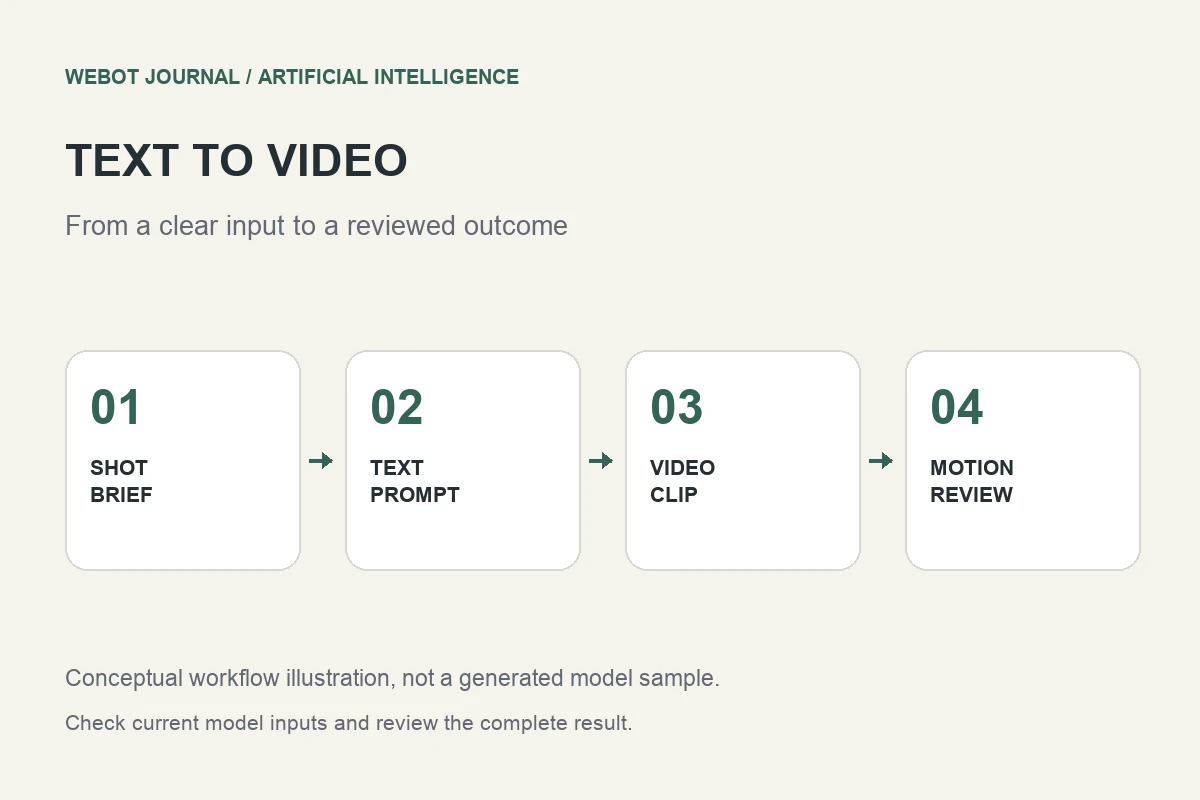
Text to video AI turns a written description into moving imagery. A useful project, however, begins before the prompt and continues after the model returns a file. You need a clear purpose, a manageable shot, suitable model inputs, a review method, and a delivery format. Without those decisions, a visually impressive generation may still fail to explain the product, fit the edit, or communicate the intended idea.
1. Understand the task before choosing a model
Text to video starts with language rather than an uploaded opening image. The model synthesizes the visual sequence from the description and the settings supported by its endpoint. That does not make the prompt an exact screenplay interpreter. Instructions about motion, object identity, composition, and timing can compete, and the output may approximate some of them rather than satisfy every detail.
Distinguish this from image to video, where an image supplies a visual starting point, and reference to video, where references guide appearance or other supported properties. These tasks can share a model family while using different inputs. A product photograph that must remain recognizable may call for an image based workflow instead. Choose the task that matches the constraint; do not choose text to video merely because the prompt box is convenient.
2. Convert the idea into a production brief
Write a brief that answers four questions: who will watch, what should they understand, where will the clip appear, and what must remain accurate? For the bottle example, the audience is a mobile shopper, the message is everyday portability, the placement is a vertical product story, and the bottle shape and label are important review items. These statements are more useful than a vague request for something cinematic.
Add an acceptance condition that a reviewer can observe. For example, the bottle should remain identifiable through the shot, its silhouette should stay stable, and the movement should leave space for a separately added headline. Do not require the model to prove an unsupported product claim. If a real product feature matters, establish it through verified product information and suitable footage, rather than allowing a generated scene to imply evidence.
3. Design one shot that can actually communicate
A common beginner mistake is asking a short generation to contain an establishing shot, a close-up, a transformation, an emotional reaction, and a final logo reveal. Even when a model supports complex sequences, every additional event creates another opportunity for timing or continuity failure. Start with one visual action and one camera intention. A restrained shot is easier to evaluate and easier to combine with other footage.
For our example, the action can be sunlight moving softly across the bottle while the camera makes a slow lateral move. The product stays central and the background remains simple. If you need a second idea, plan another shot rather than placing contradictory camera moves into the same instruction. Think about how the clip will begin and end in the edit, including whether either boundary must connect to another scene.
4. Build a prompt from observable details
A practical prompt describes the subject, setting, action, framing, camera movement, and visual treatment. One possible starting point is: a reusable metal water bottle on a clean wooden desk beside a bright window; soft morning light; a slow, steady lateral camera move; the bottle remains upright and centered; a quiet, realistic product presentation with empty space above the subject. This is a draft brief expressed visually, not a universal formula.
Notice what the prompt avoids. It does not combine a fast orbit with a fixed viewpoint, ask for multiple incompatible lighting conditions, or demand a specific brand label without checking whether the selected workflow can preserve it. Plain descriptions often communicate better than a stack of adjectives. Add detail because it changes a visible decision, not because the prompt looks more sophisticated when it is longer.
5. Read the endpoint controls instead of guessing
Model names alone do not tell you which settings are supported. Review the current workspace or endpoint schema for accepted duration, resolution, aspect ratio, audio behavior, and optional controls. A parameter available in one variant may be absent or constrained in another. Do not paste settings from an unrelated tutorial and assume that identical field names have identical meanings.
fal publishes separate text to video and related video endpoints, including Veo workflows. That is a useful starting point for researching capabilities, but the current WeBot workspace remains the place to check what is available for your request. Provider documentation and platform availability answer different questions. This guide deliberately avoids fixed maximum durations or a universal list of settings because those details must be verified against the selected endpoint when you work.
6. Review motion across the whole sequence
Watch once at normal speed for overall communication, then inspect the moments where the subject turns, changes scale, crosses another object, or approaches the edge. Look for geometry changes, flickering surfaces, inconsistent shadows, and background objects that appear or disappear. These problems can be missed when you inspect only the thumbnail or the first frame.
Separate visual artifacts from a brief mismatch. A technically stable clip can still use the wrong camera angle or communicate the wrong mood. Conversely, a promising composition may contain an obvious artifact that makes it unsuitable for a product claim. Record both types of finding. Your review should tell the next person what to change, not merely state that the output needs to look more professional.
7. Budget around complete usable outcomes
A single request price does not describe the cost of a finished project. Include the candidates you actually need, related image preparation, editing time, audio work, and any separate processing. Compare workflows on the basis of a usable deliverable. A cheaper attempt can be less economical if it repeatedly fails the same essential requirement.
On WeBot, review the selected request’s current credit estimate after verified login and before dispatch. An estimate or reservation is not automatically the final cost, and a connection delay is not evidence that a request failed. Keep the model page open during generation and use the saved result when it arrives. Do not submit an identical replacement merely because the first accepted job is taking longer than expected.
8. Know when another workflow is the better answer
Text to video is valuable for exploring scenes, illustrating a concept, and producing visual material that can tolerate synthesis. It is less suitable when the project requires exact reproduction of a complex product, a verified real event, or a performance that must follow an existing recording precisely. A different input task, real footage, motion graphics, or a hybrid workflow may be more appropriate.
The best result of a test can be a clearer decision not to use that generation. Keep the brief in control of the tool. Start with a small shot, check the current endpoint, describe observable details, review the complete audiovisual result, and finish it through a deliberate edit. That sequence turns text to video AI from a novelty into a production method you can explain, evaluate, and improve.
Sources and further reading
Put the guide into practice
Browse available workflows, review their supported inputs and choose a workspace for your next project.
Explore AI models