AI Images
AI Image Generation: A Practical Guide from Prompt to Finished Visual

AI image generation is most useful when it turns a clear creative decision into a visual you can evaluate. A sentence alone rarely describes every detail of a finished image. The work includes choosing a purpose, directing composition, preparing references, comparing alternatives and checking the result at the size where people will see it. This guide takes you through that process using an original product campaign example, with practical prompts and a review method you can repeat.
Our example is a fictional independent homeware studio launching a terracotta vase. The goal is a small family of warm, believable images for a website and social posts. The prompts are educational examples, not demonstrations of measured model performance. The illustrations accompanying this article are AI-created editorial artwork. They do not show an actual WeBot generation result or promise that a particular model will reproduce the same picture.
1. Start with the job the picture must do
Before opening a generator, write a brief that a photographer or designer could understand. Name the audience, the object or person that matters, the placement and the action you want the viewer to take. A product listing needs an accurate object and a clean silhouette. A campaign banner needs room for copy. A social story needs a composition that still makes sense on a narrow screen. These jobs require different pictures even when the subject is identical.
For the vase campaign, the brief might be: introduce a handmade homeware collection to people furnishing small apartments; make the material feel tactile and approachable; use warm window light; leave open space for a short headline. The deliverables are one landscape website image and one portrait social image. That short paragraph resolves more uncertainty than adding a long list of fashionable style words to a prompt.
Separate requirements from preferences. The real vase proportions, number of objects and absence of a printed logo may be requirements. A linen background or dried branch may be preferences. When a result looks attractive but violates a requirement, do not quietly accept it. Record the problem and make the next attempt about fixing that problem. This keeps visual appeal connected to the purpose of the image.
2. Choose text generation, editing or a reference workflow
Text to image is a useful starting point when you are exploring a scene and do not need to reproduce an existing object exactly. You describe the desired content, and the selected model constructs an interpretation. Image editing starts from a picture you supply and asks for a change. A reference workflow may guide composition, appearance or identity, depending on the model. These approaches are related, but their inputs and controls are not interchangeable.
If the homeware studio already has a photograph of the actual vase, a supported editing workflow may be a better fit than asking a text model to invent a similar vase. A text-only generation can alter the lip, glaze, proportions or handles. Those differences matter in a product listing. If the job is an early mood board, however, an invented vase can be acceptable as long as nobody presents it as the real product.
On WeBot, browse the available image workspaces and read the selected workspace's input requirements. Check whether it accepts a source image, several references, a mask or only text. Availability and settings can differ across models. Do not assume a control described in a general tutorial exists in every workspace. Choose the workflow around the asset you need to preserve, then choose settings that the actual form supports.
3. Build a prompt around observable details
A useful prompt describes things you can point to in the final picture. Start with the subject, then describe its action or arrangement, the environment, composition, light and desired visual treatment. These are directions rather than a rigid formula. The important test is whether each phrase helps resolve a real ambiguity. “Beautiful, premium, stunning, masterpiece” does not tell you where to put the vase or which side the light comes from.
Try this starting prompt: A single matte terracotta vase with a narrow neck stands on a pale stone shelf beside an apartment window. Soft morning light enters from the left and creates a gentle shadow on the right. The vase sits in the right third of a wide composition. The left third remains uncluttered for a headline. Natural surface texture, restrained warm colours, believable product photography, no lettering or decorative objects.
After generating, compare the result with that description line by line. Is there one vase? Is the left side clear? Does the surface look matte rather than polished? If the image misses the composition but gets the material right, preserve the material direction and change the framing instruction. Avoid rewriting the whole prompt every time. Small controlled changes teach you more about what is affecting the result.
4. Direct framing before adding decorative detail
Composition determines where attention lands. A centred object on a plain background communicates differently from a cropped object near the edge of a busy room. Decide what viewers should notice first, what supports that subject and what can disappear. In a website banner, the text and interface will compete with the picture. Planning negative space early is easier than trying to paint extra background into a tightly cropped final image.
For the vase, imagine three arrangements. A clean catalogue frame isolates the object. A room scene shows how it fits into a small living space. A close detail shows the surface texture. Each arrangement answers a different customer question. Keep those roles separate rather than demanding a catalogue view, an entire room and an extreme material close-up in a single image. A set of purposeful images often communicates more clearly than one overloaded composition.
Check the crop at the intended aspect ratio. If a portrait crop cuts off the rim, moving the vase a little within a landscape image may not solve the problem. Generate or edit for the portrait placement deliberately. Leave breathing room around important edges, especially when a social platform may overlay controls. Any safe area you choose is a design decision for that placement, not a universal number that every platform guarantees.
5. Describe light, material and colour as a coherent scene
Lighting words work best when they agree with each other. A large soft window creates a different feeling from a small hard spotlight. Backlighting can reveal a silhouette, while side lighting can make surface texture easier to see. Choose one understandable lighting arrangement first. Adding studio flash, sunset glow, candlelight and overcast daylight together can make the direction harder to interpret and the result harder to judge.
Material deserves equally specific language. A matte ceramic surface should not look like polished metal. Linen should have a different texture from smooth paper. Describe the important physical qualities without demanding impossible detail everywhere. For the vase, “fine irregular ceramic texture with a matte finish” is more useful than a list of unrelated camera and render terms. Examine highlights and shadows to see whether the generated surface behaves plausibly.
Choose a small colour family that serves the brief. Warm clay, off-white stone and muted olive might support a quiet homeware campaign. If you need an exact brand colour, inspect and adjust the exported artwork in a suitable design tool rather than treating a colour name in a prompt as a calibrated specification. Consistency comes from deliberate selection, references and final correction, not from assuming every generation interprets a colour word identically.
6. Prepare references that clarify the right thing
A reference should reduce uncertainty. A sharp front view of a vase can help communicate its silhouette. A room photograph can suggest layout. A palette image can communicate colour relationships. If you supply several unrelated images without explaining their roles, you may introduce more ambiguity than you remove. Where the selected model supports reference instructions, state which image controls the object and which controls the setting.
Use files that show the important information clearly. A tiny screenshot with interface buttons and a cropped object can be a poor product reference. Remove irrelevant borders in an ordinary editor, keep an untouched original and verify that the file meets the workspace's supported format and size. Do not upload somebody else's confidential campaign material just because it is convenient. Use references you are entitled to provide and avoid unnecessary personal information.
For a real product, compare the generated version with the original photograph at several points: overall proportions, number of parts, distinctive marks and small functional details. A model may preserve the broad appearance while changing a handle or opening. If that change would misrepresent what a buyer receives, use a workflow that preserves the product more reliably or retain conventional photography for the listing. A compelling campaign concept and an accurate catalogue photograph have different acceptance standards.
7. Edit one clearly defined region at a time
Editing is useful when most of a picture already works. You might replace a distracting background object, extend the canvas for a banner or change a prop while preserving the main subject. State both the desired change and the features that must remain. “Replace the bright red book with a folded cream cloth; preserve the vase shape, camera angle and existing window light” is a more precise request than “make this better.”
If the selected workspace offers a mask, check how that specific tool defines the editable area. Mask conventions can vary. Keep edges clean enough for the intended change and inspect the boundary afterward. Look for halos, repeated textures, mismatched shadows or abrupt transitions. A successful central edit can still leave visible damage around the border. Review the entire frame rather than only the region you asked to change.
Save the accepted version before attempting another edit. Repeatedly editing an already edited image can introduce drift that is difficult to identify later. Use short descriptive filenames such as vase-banner-background-v02 and keep a note of the source. If a change affects several important areas, returning to a better source image may be more efficient than repairing accumulated errors. Versioning is a creative habit that reduces confusion, not an advanced feature reserved for large teams.
8. Iterate with a comparison sheet and a stop rule
A comparison sheet turns a pile of attractive pictures into a decision. Make columns for the requirement, the observed result and the next change. For the vase campaign, score silhouette accuracy, open headline space, believable material, lighting consistency and crop suitability. Use a simple scale such as acceptable, needs revision or reject. The aim is to make differences visible, not to create a scientific benchmark from subjective taste.
Change one major factor per round when practical. Keep the scene and object fixed while changing framing, or keep framing fixed while changing the background. If the workspace supports a seed, note it alongside the other settings, but do not assume seed behaviour is identical across models or model updates. Record the actual controls shown in that workspace. A reproducible note is more useful than a remembered feeling about which attempt worked best.
Set a stop rule before you spend the whole afternoon exploring. Stop when the picture meets the brief, survives the final crop and passes the review checklist. Alternatively, stop when the next attempt no longer addresses a specific problem. You can always save a promising alternative for a future campaign. Generating more variations is not automatically progress; choosing and finishing the right one is part of the work.
9. Troubleshoot common image problems systematically
When the subject is wrong, simplify the prompt and move its defining features earlier. When the frame is crowded, remove secondary objects and state the intended arrangement plainly. When the style changes unpredictably, reduce conflicting references or style instructions. These adjustments are practical experiments rather than universal fixes. Inspect the result and keep only the changes that improve the actual requirement.
Faces, hands, jewellery, reflections and repeated objects deserve close inspection. A plausible thumbnail can hide extra fingers, inconsistent earrings, broken handles or reflections that do not match the scene. Zoom in, but also view the image at normal size. Some problems are technically visible yet irrelevant to the placement; others undermine trust immediately. For people or identifiable subjects, accuracy and permission may matter more than the visual polish of the surrounding scene.
Text inside generated artwork needs its own review. Even when a model can render lettering, check spelling, punctuation and legibility character by character. For a campaign headline, adding editable text in a design tool often gives more control over typography and accessibility. Keep essential information available as actual webpage text as well. A headline embedded only in a picture is harder to translate, update and read with assistive technology.
10. Make a consistent small campaign, not random variations
A visual family shares a few clear decisions. Write down the palette, lighting direction, background treatment, framing conventions and permitted props. For our homeware studio, the rules might be warm daylight from the left, matte pale surfaces, one supporting textile and generous negative space. Those rules leave room for variety while preventing every image from looking as though it belongs to a different business.
Create a contact sheet of the selected images and review them together. Compare shadow direction, colour temperature, object scale and the amount of empty space. A picture can be excellent on its own yet feel out of place in the set. Correct the outlier or replace it. Do not force consistency by applying a heavy filter that conceals product details or changes the material colour beyond what the brief permits.
For a larger campaign, separate the source asset from its placements. Keep one approved master and derive clearly named crops for the website, article cover and social post. Some placements may need a new composition rather than a crop. Record that decision so another person does not repeatedly stretch a narrow image into a wide banner. Consistency is easier to maintain when the team knows which version is approved for each purpose.
11. Finish the image for the actual website
Select the output dimensions around the placement rather than choosing the largest option automatically. A small card image and a full-width hero have different needs. After export, use a suitable image tool to inspect sharpness, colour and compression. Compare file size with visible quality at the displayed size. An oversized file can make a page slower without improving what readers actually see.
Provide useful alternative text when the image communicates information. For our campaign example, “Terracotta vase on a pale shelf with warm light from the left” describes the scene. Repeating “best AI image generator” several times does not help a reader understand the picture. Decorative artwork may need empty alternative text in the final implementation; informative diagrams need an explanation that communicates their meaning outside the image.
Keep captions honest. Label an illustrative AI-created scene as an illustration when readers could otherwise mistake it for a photographed result or a real product demonstration. Preserve any source or project records you need for later review. If you compare generation tools, distinguish observed tests from general workflow advice. This article teaches a process; it does not claim that the fictional vase campaign was commercially produced or that every listed workspace was tested against the same image.
12. Use WeBot as a deliberate workspace
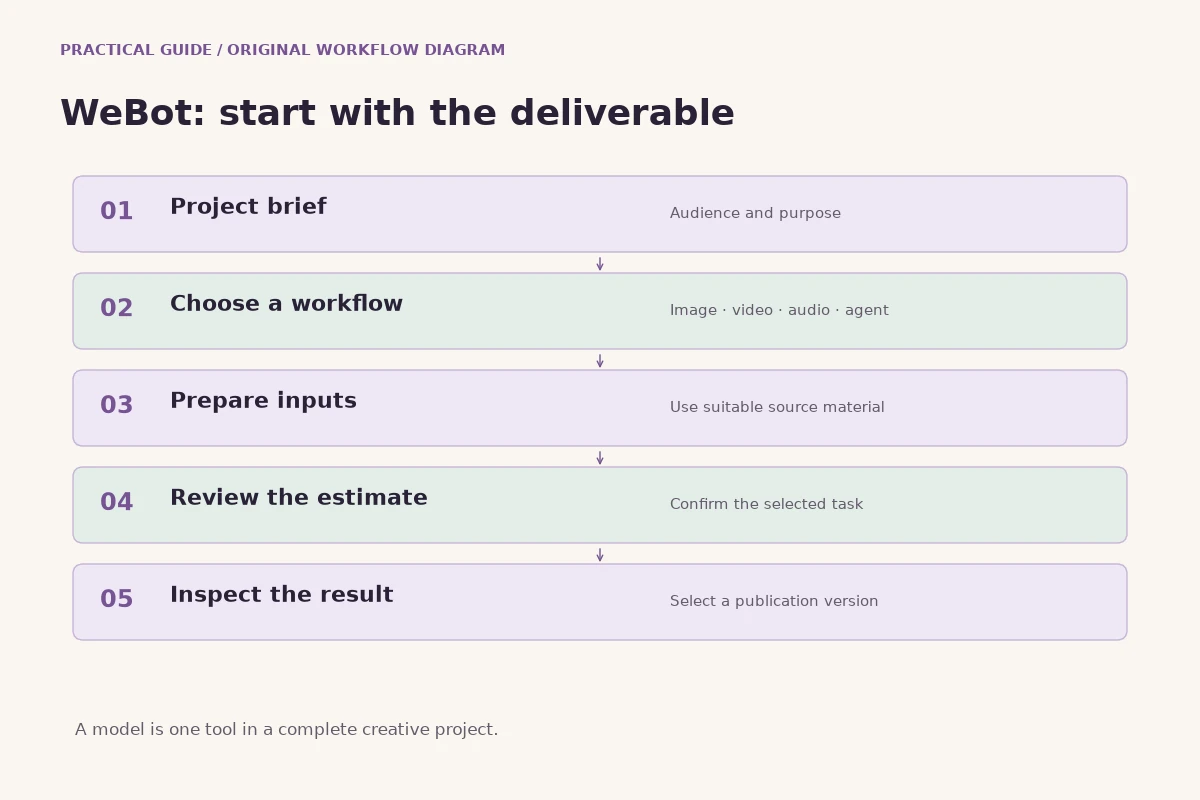
Open the public image guide or model directory and select a currently available image workflow. Guests can browse and prepare inputs. Verified login is required for credit calculation and generation. Read the selected workspace's actual input fields and settings, then prepare a small first attempt that answers your most important uncertainty. Do not upload every reference you own before deciding what each reference is meant to contribute.
Review the displayed credit estimate before submitting. An estimate is part of planning and should not be confused with a promise of identical final usage for every workflow. Follow the workspace's reservation and final-adjustment wording. Keep the model page open while the request runs and review the saved output when it arrives. If the connection is interrupted, avoid repeatedly submitting the same job simply because the result has not appeared yet.
After the result is available, save the accepted image and the settings you actually used. Write one sentence about why it passed the brief or why it failed. That small habit creates useful knowledge for the next project. The strongest image workflow is a loop of clear intent, supported inputs, controlled experimentation and careful finishing. A longer prompt can help only when its additional words describe decisions that matter.
13. Frequently asked questions and a final checklist
Can one prompt produce a complete brand campaign? It can suggest a direction, but a finished campaign still needs selection, consistency checks and placement-specific exports. Should beginners start with many style references? Start with the smallest set that resolves the real uncertainty, then add references only when their role is clear. Is a larger image always better? Judge the file at its intended display size and consider loading cost as well as visible detail.
Can you use generated images for every product listing? Evaluate the actual output against the real item and the relevant publication requirements. A scene that changes the product shape or suggests features it does not have is a poor listing asset, however attractive it looks. Do you need to name a specific model in every prompt? Usually the workspace already determines the model. Describe the visual task and use the controls it actually exposes.
Before publishing, check the original brief, subject accuracy, final crop, spelling, distracting defects, file size, alternative text and the honesty of any caption. Keep the approved master and a record of your source files. Then publish the picture because it does its job, not because it uses the longest prompt or the most fashionable effect. Clear direction and careful review remain valuable even as generation models and their interfaces continue to change.
14. A ten-minute review with another person
Ask someone who has not read the prompt to look at the final image. First ask what they notice, then what they think the image is advertising. Avoid telling them the intended answer before they respond. If they notice the background prop before the vase, the composition may need attention. If they assume the illustrated scene is a real product photograph, your caption or presentation may need to be clearer.
Use that feedback to make a specific decision. You might simplify a prop, adjust the crop or strengthen the nearby product description. Keep the change connected to the brief rather than trying to satisfy every preference. A short independent review can reveal communication problems that are invisible after you have spent an hour comparing nearly identical variations. Finish when the image is clear, accurate enough for its purpose and ready for its actual placement.
Further reading
Put the guide into practice
Browse available workflows, review their supported inputs and choose a workspace for your next project.
Explore AI models